<?xml version="1.0" encoding="utf-8"?>
<feed xmlns="http://www.w3.org/2005/Atom">
  <title>Powersee的博客</title>
  
  
  <link href="https://powersee.github.io/atom.xml" rel="self"/>
  
  <link href="https://powersee.github.io/"/>
  <updated>2026-04-19T02:25:32.801Z</updated>
  <id>https://powersee.github.io/</id>
  
  <author>
    <name>powersee</name>
    
  </author>
  
  <generator uri="https://hexo.io/">Hexo</generator>
  
  <entry>
    <title>剪映音乐骤停效果制作</title>
    <link href="https://powersee.github.io/2026/04/capcut-music-stop/"/>
    <id>https://powersee.github.io/2026/04/capcut-music-stop/</id>
    <published>2026-04-19T02:17:21.000Z</published>
    <updated>2026-04-19T02:25:32.801Z</updated>
    
    <content type="html"><![CDATA[<p>结尾切出两段，后一段音量拉低到无。</p><p><img src="/img/2026/capcut-timeline-music.jpg" alt="capcut-timeline-music"></p><p>再建立复合片段</p><p><img src="/img/2026/capcut-timeline-music-2.jpg" alt="capcut-timeline-music-2"></p><p>添加「麦霸」效果，空间大小 85，强弱 45。</p><p><img src="/img/2026/capcut-maiba.webp" alt="capcut-maiba"></p>]]></content>


    <summary type="html">&lt;p&gt;结尾切出两段，后一段音量拉低到无。&lt;/p&gt;
&lt;p&gt;&lt;img src=&quot;/img/2026/capcut-timeline-music.jpg&quot; alt=&quot;capcut-timeline-music&quot;&gt;&lt;/p&gt;
&lt;p&gt;再建立复合片段&lt;/p&gt;
&lt;p&gt;&lt;img src=&quot;/img</summary>


    <category term="剪映" scheme="https://powersee.github.io/tags/%E5%89%AA%E6%98%A0/"/>
    
  </entry>
  
  <entry>
    <title>新版本 pr 如何更改标签颜色</title>
    <link href="https://powersee.github.io/2026/03/adobe-pr-change-clip-lable-colors/"/>
    <id>https://powersee.github.io/2026/03/adobe-pr-change-clip-lable-colors/</id>
    <published>2026-03-25T14:57:36.000Z</published>
    <updated>2026-03-25T15:02:14.060Z</updated>
    
    <content type="html"><![CDATA[<p>前段时间把 Adobe premiere 升级到 2025 版本后，发现给素材更改标签颜色，会把同类型的素材一同改变，不像以前旧版本那样，只是单独改变某一片段的颜色。</p><p>解决方案：</p><p>点击时间线左上方的小扳手，把第一项【显示源剪辑名称和标签】取消勾选即可。</p><p><img src="/img/2026/image-20260321153856330.png" alt="image-20260321153856330"></p>]]></content>


    <summary type="html">&lt;p&gt;前段时间把 Adobe premiere 升级到 2025 版本后，发现给素材更改标签颜色，会把同类型的素材一同改变，不像以前旧版本那样，只是单独改变某一片段的颜色。&lt;/p&gt;
&lt;p&gt;解决方案：&lt;/p&gt;
&lt;p&gt;点击时间线左上方的小扳手，把第一项【显示源剪辑名称和标签】取消勾选</summary>


    <category term="Adobe" scheme="https://powersee.github.io/tags/Adobe/"/>
    
  </entry>
  
  <entry>
    <title>给网页端的哔哩哔哩添加截图按键</title>
    <link href="https://powersee.github.io/2026/03/bilibili-add-screenshot-button/"/>
    <id>https://powersee.github.io/2026/03/bilibili-add-screenshot-button/</id>
    <published>2026-03-23T14:53:56.000Z</published>
    <updated>2026-03-23T15:02:51.102Z</updated>
    
    <content type="html"><![CDATA[<p>由于有时候需要边观看 B 站上的视频，边做笔记。所以截图这个动作比较频繁，手动去截图，会把弹幕给也包含进去，而且自己去调整边缘，感觉效率也比较低。</p><p>于是我想找找有没有更好的方法。</p><p>很快就搜索到了一个油猴脚本：<a href="https://greasyfork.org/zh-CN/scripts/522597-bilibili-%E8%A7%86%E9%A2%91%E6%88%AA%E5%9B%BE%E6%8C%89%E9%92%AE">Bilibili 视频截图按钮</a></p><p>安装好后，刷新一下网页，就可以在标题下方，看到一个截图按钮。</p><p><img src="/img/2026/image-20260317165037067.png" alt="image-20260317165037067"></p><p>截图获得的画面不包含弹幕，图片格式为 png，分辨率与视频本身一致。</p><p><img src="/img/2026/image-20260317165210887.webp" alt="image-20260317165210887"></p>]]></content>


    <summary type="html">&lt;p&gt;由于有时候需要边观看 B 站上的视频，边做笔记。所以截图这个动作比较频繁，手动去截图，会把弹幕给也包含进去，而且自己去调整边缘，感觉效率也比较低。&lt;/p&gt;
&lt;p&gt;于是我想找找有没有更好的方法。&lt;/p&gt;
&lt;p&gt;很快就搜索到了一个油猴脚本：&lt;a href=&quot;https://gr</summary>


    <category term="随笔" scheme="https://powersee.github.io/tags/%E9%9A%8F%E7%AC%94/"/>
    
  </entry>
  
  <entry>
    <title>Mac 上面运行 iOS 版小红书，保存的图片在哪里？</title>
    <link href="https://powersee.github.io/2026/03/mac-xiaohongshu-image/"/>
    <id>https://powersee.github.io/2026/03/mac-xiaohongshu-image/</id>
    <published>2026-03-22T02:07:51.000Z</published>
    <updated>2026-03-22T02:09:09.620Z</updated>
    
    <content type="html"><![CDATA[<p>我的 Mac mini 上面的小红书 APP，是之前在 APP store 下载的 iOS 版本。</p><p>最近，我在里面长按图片，然后选择保存。</p><p>提示成功之后，却在访达里面，找不到图片踪迹，「下载」、「资源库」都没有。</p><p>最终发现，图片是存在 Mac 上的「照片」APP 里。</p><p><img src="/img/2026/Mac-Photos-xhs-pic.webp" alt="Mac-Photos-xhs-pic"></p>]]></content>


    <summary type="html">&lt;p&gt;我的 Mac mini 上面的小红书 APP，是之前在 APP store 下载的 iOS 版本。&lt;/p&gt;
&lt;p&gt;最近，我在里面长按图片，然后选择保存。&lt;/p&gt;
&lt;p&gt;提示成功之后，却在访达里面，找不到图片踪迹，「下载」、「资源库」都没有。&lt;/p&gt;
&lt;p&gt;最终发现，图片是存</summary>


    <category term="随笔" scheme="https://powersee.github.io/tags/%E9%9A%8F%E7%AC%94/"/>
    
  </entry>
  
  <entry>
    <title>pr 素材铺满画面 媒体默认缩放</title>
    <link href="https://powersee.github.io/2025/12/adobe-pr-media-default-scaling/"/>
    <id>https://powersee.github.io/2025/12/adobe-pr-media-default-scaling/</id>
    <published>2025-12-28T10:06:17.000Z</published>
    <updated>2026-01-01T03:01:39.381Z</updated>
    
    <content type="html"><![CDATA[<p>平时剪辑的时候，建立序列一般是选择 1080P，此时如果我们把 4k 或者 720P 的素材拉到时间线，它要不只展示一部分，要不就居中完整显示，但是四周留有黑边。</p><p>我们都手动去进行缩放处理。</p><p>但其实有更好的处理方法，我们把素材拉进时间线后，右键素材，有三个选项</p><ul><li><p>缩放为帧大小 （会损失画质）</p></li><li><p>贴合帧 （无损，和我们手动缩放，调整位置一样）</p></li><li><p>填充帧 （一般用于低分辨率素材，主要是让素材铺满，不留黑边）</p></li></ul><p> <img src="/img/2026/pr-set-to-frame-size.webp" alt="pr-set-to-frame-size"></p><p>那么对于把 4k 或者 1440P 的素材，放入 1080P 的时间线，该选择「缩放为帧大小」还是「贴合帧」还呢？</p><p>如果我们放入的视频或者图片，之后还需要设置关键帧缩放，那么选择贴合帧会更好</p><p>我们还可以在「首选项」「媒体」「默认媒体缩放」设置为贴合帧。这样把素材拉入时间线时，软件就会自动帮我们设置好，不需要右键素材去设置了。</p><p><img src="/img/2026/pr-media-default-media-scaling.webp" alt="pr-media-default-media-scaling"></p>]]></content>


    <summary type="html">&lt;p&gt;平时剪辑的时候，建立序列一般是选择 1080P，此时如果我们把 4k 或者 720P 的素材拉到时间线，它要不只展示一部分，要不就居中完整显示，但是四周留有黑边。&lt;/p&gt;
&lt;p&gt;我们都手动去进行缩放处理。&lt;/p&gt;
&lt;p&gt;但其实有更好的处理方法，我们把素材拉进时间线后，右键素</summary>


    <category term="Adobe" scheme="https://powersee.github.io/tags/Adobe/"/>
    
  </entry>
  
  <entry>
    <title>pr 给缓入缓出设置快捷键</title>
    <link href="https://powersee.github.io/2025/12/adobe-pr-easy-in-out-shortcut/"/>
    <id>https://powersee.github.io/2025/12/adobe-pr-easy-in-out-shortcut/</id>
    <published>2025-12-27T15:12:37.000Z</published>
    <updated>2025-12-27T15:22:42.383Z</updated>
    
    <content type="html"><![CDATA[<p>平时使用 pr 给视频或者素材，添加位移或者缩放动画时，都是手动选中关键帧，右键，点击缓出，再选中另一个关键帧，点击缓入</p><p><img src="/img/2024/premiere-effect-controls-easy-in-out.webp" alt="premiere-effect-controls-easy-in-out"></p><p>今天看别人的视频，才发现原来可以在设置里面，给缓入缓出都设置快捷键的。</p><p><img src="/img/2024/pr-settings-shortcut-huan.webp" alt="pr-settings-shortcut-huan"></p><p><img src="/img/2024/pr-settings-3-4.webp" alt="pr-settings-3-4"></p>]]></content>


    <summary type="html">&lt;p&gt;平时使用 pr 给视频或者素材，添加位移或者缩放动画时，都是手动选中关键帧，右键，点击缓出，再选中另一个关键帧，点击缓入&lt;/p&gt;
&lt;p&gt;&lt;img src=&quot;/img/2024/premiere-effect-controls-easy-in-out.webp&quot; alt=&quot;p</summary>


    <category term="Adobe" scheme="https://powersee.github.io/tags/Adobe/"/>
    
  </entry>
  
  <entry>
    <title>docker 拉取 memos 镜像失败的解决方案</title>
    <link href="https://powersee.github.io/2025/11/docker-pull-memos/"/>
    <id>https://powersee.github.io/2025/11/docker-pull-memos/</id>
    <published>2025-11-16T02:29:21.000Z</published>
    <updated>2025-11-16T02:38:26.235Z</updated>
    
    <content type="html"><![CDATA[<p>最近想看看 memos 现在的新功能，于是打算拉取一个新的镜像，在 NAS 上面运行看看效果如何。</p><figure class="highlight plaintext"><table><tr><td class="code"><pre><span class="line">docker pull neosmemo/memos:0.25</span><br></pre></td></tr></table></figure><p>然后就拉取失败了，意料之中的，Dockerhub 很久之前就没法正常访问拉取了。</p><p>于是我选择拉取 GitHub 上的镜像。</p><figure class="highlight plaintext"><table><tr><td class="code"><pre><span class="line">docker pull ghcr.io/usememos/memos:0.25</span><br><span class="line">0.25: Pulling from usememos/memos</span><br><span class="line">2d35ebdb57d9: Pull complete</span><br><span class="line">fbc92e9aa2c0: Pull complete</span><br><span class="line">f5dbe49bfe14: Pull complete</span><br><span class="line">bb9a81ac92e7: Pull complete</span><br><span class="line">11851c07ec75: Pull complete</span><br><span class="line">7e5f450aa3e6: Pull complete</span><br><span class="line">Digest: sha256:240e34c9328b5206d534782a47b6d8164f19177eface64ffa44da93efcb929a0</span><br><span class="line">Status: Downloaded newer image for ghcr.io/usememos/memos:0.25</span><br><span class="line">ghcr.io/usememos/memos:0.25</span><br></pre></td></tr></table></figure><p>虽然速度也挺慢的，但是能拉取成功，算不错了。</p><p>那么原本的运行命令，也得改了，从原来的</p><figure class="highlight plaintext"><table><tr><td class="code"><pre><span class="line">docker run -d \</span><br><span class="line">  --name memos \</span><br><span class="line">  -p 5230:5230 \</span><br><span class="line">  -v ~/.memos:/var/opt/memos \</span><br><span class="line">  neosmemo/memos:stable</span><br></pre></td></tr></table></figure><p>改为</p><figure class="highlight plaintext"><table><tr><td class="code"><pre><span class="line">docker run -d \</span><br><span class="line">  --name memos \</span><br><span class="line">  -p 5230:5230 \</span><br><span class="line">  -v ~/.memos:/var/opt/memos \</span><br><span class="line">  ghcr.io/usememos/memos:0.25</span><br></pre></td></tr></table></figure><p>我个人喜欢去拉取特定的版本号。</p>]]></content>


    <summary type="html">&lt;p&gt;最近想看看 memos 现在的新功能，于是打算拉取一个新的镜像，在 NAS 上面运行看看效果如何。&lt;/p&gt;
&lt;figure class=&quot;highlight plaintext&quot;&gt;&lt;table&gt;&lt;tr&gt;&lt;td class=&quot;code&quot;&gt;&lt;pre&gt;&lt;span class=&quot;l</summary>


    <category term="Docker" scheme="https://powersee.github.io/tags/Docker/"/>
    
  </entry>
  
  <entry>
    <title>迁移 Mydiary 数据到 侠客日记</title>
    <link href="https://powersee.github.io/2025/07/Mydiary-SwashbucklerDiary-data/"/>
    <id>https://powersee.github.io/2025/07/Mydiary-SwashbucklerDiary-data/</id>
    <published>2025-07-07T09:46:37.000Z</published>
    <updated>2025-07-07T09:55:14.426Z</updated>
    
    <content type="html"><![CDATA[<p>我使用 <a href="https://github.com/DaxiaK/MyDiary">Mydiary</a> 这个日记 app 好多年了，至今里面的日记有几百篇。</p><p>但是这个 app 的最后一次更新，是在 2017 年，虽然在现在最新的 Android 15 手机上，还可以正常使用，但我一直想寻找更好用的替代品。</p><p>我对于新的日记软件，最主要的需求是：</p><ul><li>开源的</li><li>支持内容搜索</li></ul><p>终于，我找到了《<a href="https://github.com/Yu-Core/SwashbucklerDiary">侠客日记</a>》。</p><p>我简单了解一下，发现它不仅满足我的需求，而且还有很多亮点。例如支持 webdav 备份、多平台客户端、使用 markdown 语法……</p><p>所以我决定将原本的日记内容，迁移过来。</p><h3 id="实际操作"><a href="#实际操作" class="headerlink" title="实际操作"></a>实际操作</h3><p>首先在 Mydiary 导出数据，得到一个 zip 压缩包，里面是一个 <code>backup.json</code> 文件。</p><p>我接着研究「侠客日记」的导出导入，然后得知，只要把旧的日记数据，处理转换为一篇篇的 md 文件，再把它们压缩到一个 zip 压缩包里，就可以导入到「侠客日记」中。</p><p>于是我是弄了一个 python 脚本，来将 <code>backup.json</code> 转换为多个 md 文件的。脚本内容如下。</p><figure class="highlight plaintext"><table><tr><td class="code"><pre><span class="line"># -*- coding: utf-8 -*-</span><br><span class="line">import json</span><br><span class="line">import os</span><br><span class="line">from datetime import datetime</span><br><span class="line"></span><br><span class="line"></span><br><span class="line">def extract_diaries(json_data):</span><br><span class="line">    # 解析JSON数据</span><br><span class="line">    data = json.loads(json_data)</span><br><span class="line"></span><br><span class="line">    # 获取日记主题列表</span><br><span class="line">    for topic in data[&#x27;backup_topic_list&#x27;]:</span><br><span class="line">        if topic[&#x27;topic_type&#x27;] == 1:  # 1表示日记类型</span><br><span class="line">            diaries = topic[&#x27;diary_topic_entries_list&#x27;]</span><br><span class="line">            break</span><br><span class="line"></span><br><span class="line">    # 创建output文件夹存放日记</span><br><span class="line">    if not os.path.exists(&#x27;output&#x27;):</span><br><span class="line">        os.makedirs(&#x27;output&#x27;)</span><br><span class="line"></span><br><span class="line">    # 处理每篇日记</span><br><span class="line">    for diary in diaries:</span><br><span class="line">        # 转换Unix时间戳为日期时间格式</span><br><span class="line">        timestamp = diary[&#x27;diary_entries_time&#x27;] / 1000  # 转换为秒</span><br><span class="line">        dt = datetime.fromtimestamp(timestamp)</span><br><span class="line">        filename = dt.strftime(&quot;%Y%m%d%H%M%S&quot;) + &quot;.md&quot;</span><br><span class="line"></span><br><span class="line">        # 构建日记内容</span><br><span class="line">        content = f&quot;# &#123;diary[&#x27;diary_entries_title&#x27;]&#125;\n\n&quot;</span><br><span class="line">        # content += f&quot;- 日期: &#123;dt.strftime(&#x27;%Y-%m-%d %H:%M:%S&#x27;)&#125;\n&quot;</span><br><span class="line">        # if diary[&#x27;diary_entries_location&#x27;]:</span><br><span class="line">        #     content += f&quot;- 地点: &#123;diary[&#x27;diary_entries_location&#x27;]&#125;\n&quot;</span><br><span class="line"></span><br><span class="line">        # 添加日记条目内容，并确保换行符合Markdown规范（\n\n）</span><br><span class="line">        for item in diary[&#x27;diary_item_list&#x27;]:</span><br><span class="line">            if item[&#x27;diary_item_type&#x27;] == 0:  # 0表示文本内容</span><br><span class="line">                # 替换单换行符为双换行符（符合Markdown段落要求）</span><br><span class="line">                item_content = item[&#x27;diary_item_content&#x27;].replace(&#x27;\n&#x27;, &#x27;\n\n&#x27;)</span><br><span class="line">                content += f&quot;\n&#123;item_content&#125;\n&quot;</span><br><span class="line"></span><br><span class="line">        # 写入文件</span><br><span class="line">        with open(os.path.join(&#x27;output&#x27;, filename), &#x27;w&#x27;, encoding=&#x27;utf-8&#x27;) as f:</span><br><span class="line">            f.write(content)</span><br><span class="line"></span><br><span class="line">        print(f&quot;已保存日记: &#123;filename&#125;&quot;)</span><br><span class="line"></span><br><span class="line"># 执行提取</span><br><span class="line">with open(&#x27;backup.json&#x27;, &#x27;r&#x27;, encoding=&#x27;utf-8&#x27;) as f:</span><br><span class="line">    json_data = f.read()</span><br><span class="line">extract_diaries(json_data)</span><br></pre></td></tr></table></figure><p>幸好当初选择的是一个，开源并且可以轻松导出数据的日记 APP，否则可能就没法像今天这样轻松地迁移数据了。</p>]]></content>


    <summary type="html">&lt;p&gt;我使用 &lt;a href=&quot;https://github.com/DaxiaK/MyDiary&quot;&gt;Mydiary&lt;/a&gt; 这个日记 app 好多年了，至今里面的日记有几百篇。&lt;/p&gt;
&lt;p&gt;但是这个 app 的最后一次更新，是在 2017 年，虽然在现在最新的 Android</summary>


    <category term="随笔" scheme="https://powersee.github.io/tags/%E9%9A%8F%E7%AC%94/"/>
    
  </entry>
  
  <entry>
    <title>手动更新了 Typecho 版本到 1.2.1</title>
    <link href="https://powersee.github.io/2025/06/typecho-update-1-2-1/"/>
    <id>https://powersee.github.io/2025/06/typecho-update-1-2-1/</id>
    <published>2025-06-20T07:03:48.000Z</published>
    <updated>2025-06-20T07:06:50.529Z</updated>
    
    <content type="html"><![CDATA[<p>最近访问了一下我之前用 docker 运行的 Typecho 博客，主页的文章可以正常浏览，但如果进入后台，就会出现这样的界面。</p><p><img src="/img/2024/Typecho-upgrade-shadow.webp" alt="Typecho-upgrade-shadow"></p><p>提示我需要升级，那就升呗。我点击下方的 「完成升级」按钮，可以看到网页正在加载，过一会儿加载完成，还是这个页面。</p><p>也就是说没法在线升级。而且比较恶心的是，它还不允许不升级。除了点击备份，可以切换到其他页面。其它地方点击之后，都是跳转回这个提示页面，也就是说现在不升级，后台这里什么事都没法干，没法创建文章，管理文章、评论这些。</p><p>一开始我尝试修改代码，去掉检测升级的代码。但是没用，还是会提示。</p><p>于是我就想，那我手动给它升级一下吧。于是到官网下载新的 Typecho 1.2.1 版本。</p><p>得到一个 typecho.zip 压缩包，那么里面要用到的就两个文件夹 <code>admin</code> <code>var</code></p><p>我使用的 image 是 80x86&#x2F;typecho:latest ，它的用户数据是在 <code>/data</code> 里面的。</p><p>创建的容器名字是 typecho，所以我在容器运行的使用，命令行执行</p><figure class="highlight plaintext"><table><tr><td class="code"><pre><span class="line">docker exec -it typecho sh</span><br></pre></td></tr></table></figure><p>来进入容器内部。默认就进入到 <code>/app</code> 这个目录中，我们需要 <code>cd /data</code> 把里面的 admin 和 var 改名为 admin1 和 var1，之后再把刚才下载的 typecho.zip 里面的 admin 和 var 这两个文件夹，复制到这里。</p><p>之后再次通过浏览器访问 Typecho 的后台，就可以完成升级了。</p>]]></content>


    <summary type="html">&lt;p&gt;最近访问了一下我之前用 docker 运行的 Typecho 博客，主页的文章可以正常浏览，但如果进入后台，就会出现这样的界面。&lt;/p&gt;
&lt;p&gt;&lt;img src=&quot;/img/2024/Typecho-upgrade-shadow.webp&quot; alt=&quot;Typecho-upg</summary>


    <category term="随笔" scheme="https://powersee.github.io/tags/%E9%9A%8F%E7%AC%94/"/>
    
  </entry>
  
  <entry>
    <title>迁移 fathom 到另一台服务器</title>
    <link href="https://powersee.github.io/2024/12/fathom2/"/>
    <id>https://powersee.github.io/2024/12/fathom2/</id>
    <published>2024-12-05T06:18:04.000Z</published>
    <updated>2024-12-05T06:19:02.645Z</updated>
    
    <content type="html"><![CDATA[<p><a href="/2023/04/fathom/">前文回顾</a></p><p>如今 fathom 这个服务我已经运行了一年多了，感觉也还行吧，很轻量，不怎么占用服务器资源。但是会被浏览器广告拦截插件，给屏蔽。所以我后来是再加了一个 umami。</p><p>最近服务器要到期了，我需要迁移 fathom 到另一台服务器上。</p><p>已知数据库 <code>fathom.db</code> 在 <code>/app</code> 下，那么可以使用命令</p><figure class="highlight plaintext"><table><tr><td class="code"><pre><span class="line">docker cp fathom:/app/fathom.db .</span><br></pre></td></tr></table></figure><p>将它从 docker 容器中复制出来。</p><p>在新的服务器上面，先创建容器</p><figure class="highlight plaintext"><table><tr><td class="code"><pre><span class="line">docker create -p 8080:8080 --name fathom usefathom/fathom:latest</span><br></pre></td></tr></table></figure><p>把数据库 fathom.db 复制到新服务器上，再复制到刚才创建的 docker 容器中。</p><figure class="highlight plaintext"><table><tr><td class="code"><pre><span class="line">docker cp fathom.db fathom:/app/</span><br></pre></td></tr></table></figure><p>然后再启动容器</p><figure class="highlight plaintext"><table><tr><td class="code"><pre><span class="line">docker start fathom</span><br></pre></td></tr></table></figure><p>这样便迁移完成了。</p>]]></content>


    <summary type="html">&lt;p&gt;&lt;a href=&quot;/2023/04/fathom/&quot;&gt;前文回顾&lt;/a&gt;&lt;/p&gt;
&lt;p&gt;如今 fathom 这个服务我已经运行了一年多了，感觉也还行吧，很轻量，不怎么占用服务器资源。但是会被浏览器广告拦截插件，给屏蔽。所以我后来是再加了一个 umami。&lt;/p&gt;
&lt;p&gt;最近服</summary>


    <category term="服务器" scheme="https://powersee.github.io/tags/%E6%9C%8D%E5%8A%A1%E5%99%A8/"/>
    
  </entry>
  
  <entry>
    <title>威联通 qnap 外接硬盘挂载失败记录</title>
    <link href="https://powersee.github.io/2024/10/qnap-mount-fail/"/>
    <id>https://powersee.github.io/2024/10/qnap-mount-fail/</id>
    <published>2024-10-28T07:49:57.000Z</published>
    <updated>2024-10-28T07:51:33.360Z</updated>
    
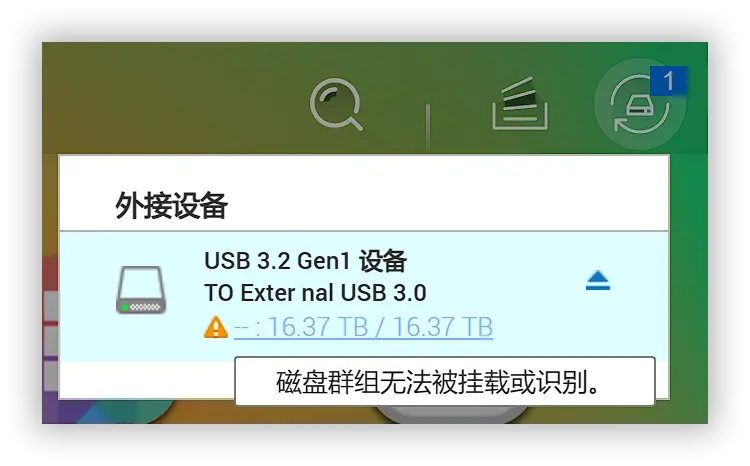
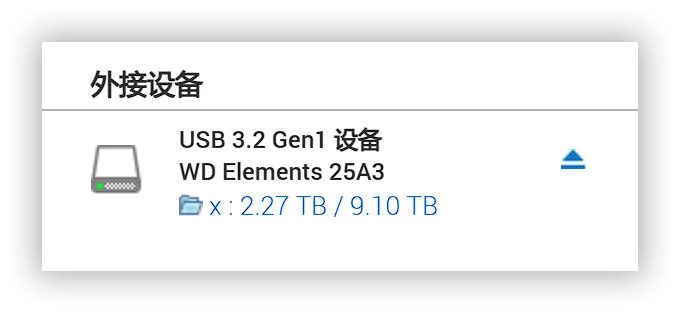
    <content type="html"><![CDATA[<p>我的 NAS 是威联通 TS-451D，它的正面有一个 USB 接口，不知什么时候开始，通过这个接口连接移动硬盘，无法成功挂载。</p><p><img src="/img/2024/can't-mount.webp" alt="can&#39;t-mount"></p><p>如图所示，会提示：<strong>磁盘群组无法被挂载或识别。</strong></p><p>但是它可以识别到硬盘的容量，而且我试过插一个 U 盘上去，可以正常挂载。按理说这个口应该没问题才对，搞不懂。</p><p>难道是我的硬盘有问题？但是我连接电脑却是可以正常读取的。于是，我把移动硬盘，连接到 NAS 后面的 USB 口，然后，就可以正常读写了。</p><p><img src="/img/2024/mount.webp" alt="mount"></p><p>也是挺奇怪的，我试了好几块硬盘，都是前面的 USB 口，可以识别到硬盘容量，但是没法挂载。使用后面的 USB 口就正常。</p><p>难道是前面的 USB 口现在供电不足了？所以连接 U 盘可以，移动硬盘不行？不清楚，本文仅仅记录一下。</p>]]></content>


    <summary type="html">&lt;p&gt;我的 NAS 是威联通 TS-451D，它的正面有一个 USB 接口，不知什么时候开始，通过这个接口连接移动硬盘，无法成功挂载。&lt;/p&gt;
&lt;p&gt;&lt;img src=&quot;/img/2024/can&#39;t-mount.webp&quot; alt=&quot;can&amp;#39;t-mount&quot;&gt;&lt;/p&gt;
</summary>


    <category term="qnap" scheme="https://powersee.github.io/tags/qnap/"/>
    
  </entry>
  
  <entry>
    <title>Mac 上的开源键盘映射应用——Karabiner-Elements</title>
    <link href="https://powersee.github.io/2024/10/Karabiner-Elements/"/>
    <id>https://powersee.github.io/2024/10/Karabiner-Elements/</id>
    <published>2024-10-19T07:01:28.000Z</published>
    <updated>2024-10-19T07:02:01.342Z</updated>
    
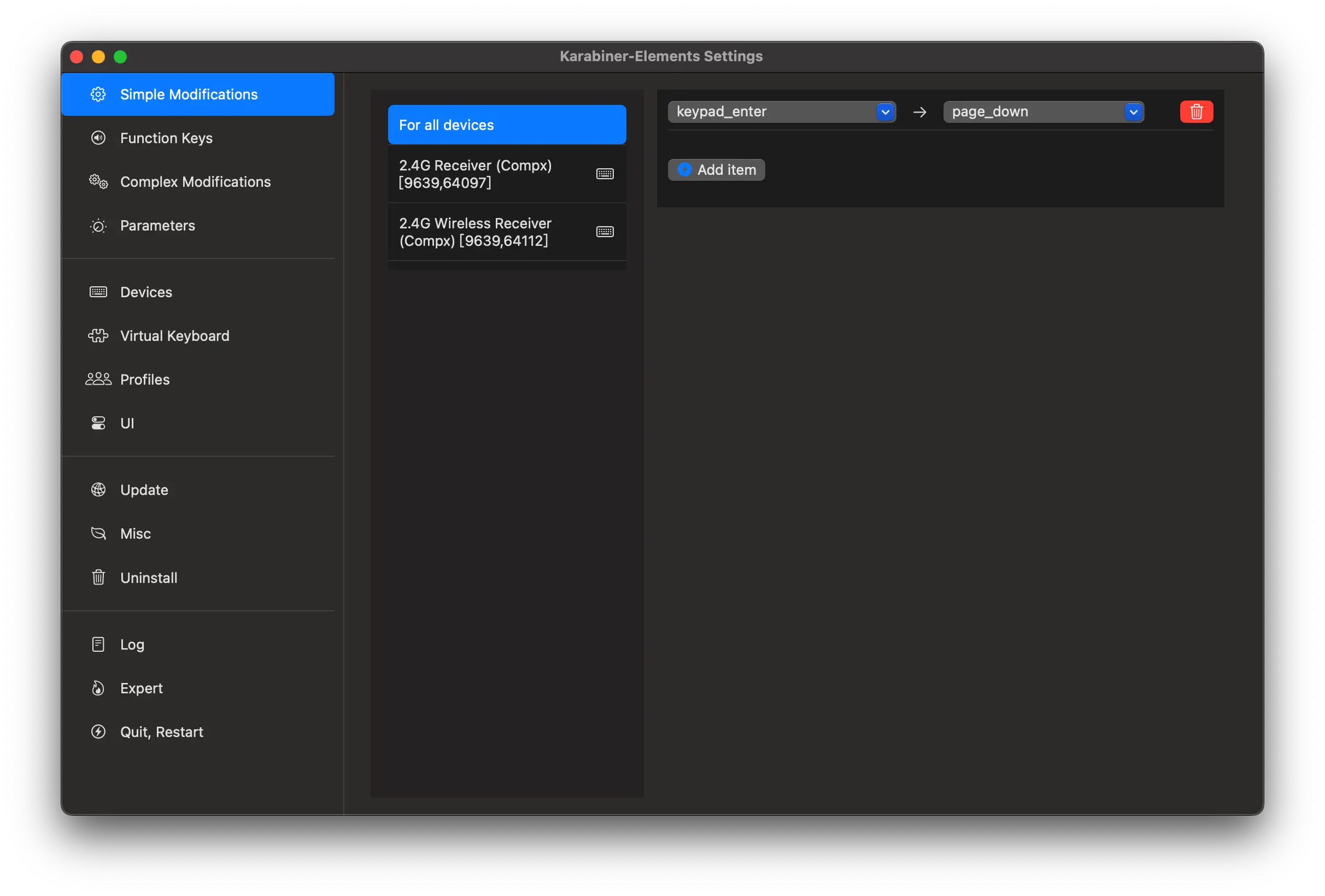
    <content type="html"><![CDATA[<p>最近在看漫画，需要经常使用到 pgdn 这颗按键，来切换到下一页。</p><p>但是它在键盘的顶部，我的手需要伸长去按。于是我现在的需求，就是想把键盘右下角，小键盘区域的回车键，映射到 pgdn 上。</p><p>当我按下小键盘的回车键，效果就相当于按下 pgdn。</p><p>然后我就发现了这个软件 <a href="https://github.com/pqrs-org/Karabiner-Elements">Karabiner-Elements</a></p><p>在 GitHub 上面有 18.7 k 的 star，只有 Mac 版本。</p><blockquote><p>Supported systems</p><ul><li>macOS 15 Sequoia<ul><li>Both Intel-based Macs 和 Apple Silicon Macs</li></ul></li><li>macOS 14 Sonoma<ul><li>Both Intel-based Macs 和 Apple Silicon Macs</li></ul></li><li>macOS 13 Ventura<ul><li>Both Intel-based Macs 和 Apple Silicon Macs</li></ul></li></ul></blockquote><p><img src="/img/2024/Karabiner-Elements.webp" alt="Karabiner-Elements"></p><p>应用下载后打开，如上图这样设置一下，就可以实现我的目的了。</p>]]></content>


    <summary type="html">&lt;p&gt;最近在看漫画，需要经常使用到 pgdn 这颗按键，来切换到下一页。&lt;/p&gt;
&lt;p&gt;但是它在键盘的顶部，我的手需要伸长去按。于是我现在的需求，就是想把键盘右下角，小键盘区域的回车键，映射到 pgdn 上。&lt;/p&gt;
&lt;p&gt;当我按下小键盘的回车键，效果就相当于按下 pgdn。&lt;/</summary>


    <category term="Mac" scheme="https://powersee.github.io/tags/Mac/"/>
    
  </entry>
  
  <entry>
    <title>在 Windows 的搜狗输入法中，输出直角引号「」</title>
    <link href="https://powersee.github.io/2024/09/win-sougou-punctuation/"/>
    <id>https://powersee.github.io/2024/09/win-sougou-punctuation/</id>
    <published>2024-09-09T03:17:29.000Z</published>
    <updated>2024-09-09T03:20:46.502Z</updated>
    
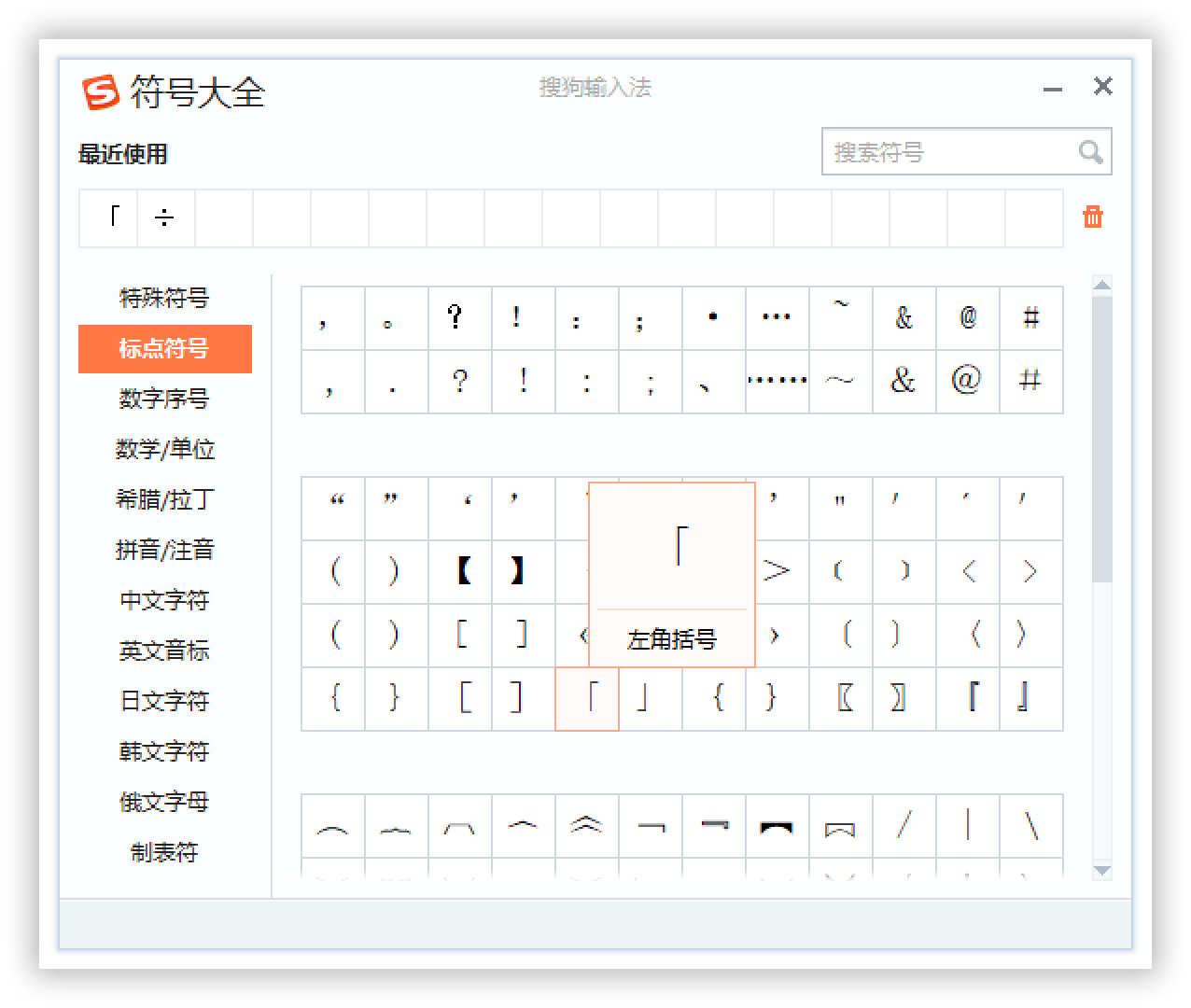
    <content type="html"><![CDATA[<p>默认情况下，在 Windows 的搜狗输入法中，直接按方括号键，得到的是 <code>【】</code></p><p>而我想要的是 <code>「」</code>，要怎么打出来呢？</p><p>可以在状态栏，右键搜狗图标，选择「符号大全」，在里面它叫「左角括号」。</p><p><img src="/img/2024/sougou-fuhao.png" alt="sougou-fuhao"></p><p>如果使用频繁，这么去点选，效率就太低了。</p><p>我也尝试过，到设置里面，更改自定义标点，但是没法改为这个「左右角括号」。</p><p>所以接下来将通过修改输入法的配置文件，来实现自定义标点，最终的效果，就是我按下方括号键 <code>[</code> 就可以直接得到直角引号 <code>「</code></p><p>我的搜狗没有登录账号，所以这个配置文件的路径是</p><figure class="highlight plaintext"><table><tr><td class="code"><pre><span class="line">%USERPROFILE%\AppData\LocalLow\SogouPY</span><br></pre></td></tr></table></figure><p>把这个地址粘贴到「资源管理器」的地址栏中，然后按下回车键即可打开文件夹。</p><p>这里面有一个<code>punctures.ini</code>  文件，我们需要修改里面的内容。选中它，然后右键「编辑」，就可以使用记事本来打开它。</p><p>里面是搜狗输入法独有的键值代码，网上好像也找不到这些代码的对应表。</p><blockquote><p>左右方括号的代码是<code>[flaafl]</code>和<code>[fnaafn]</code>，我们可以通过搜索来找到它们。</p></blockquote><p>我们观察配置文件，发现这两个的 ChHalf 和 ChFull 的值是一样的，这意味着，在半角和全角状态下，按下左右方括号键，得到的都是【】</p><figure class="highlight plaintext"><table><tr><td class="code"><pre><span class="line">[flaafl]</span><br><span class="line">Name=flaaaaaafl</span><br><span class="line">ChHalf=badaaaaaca</span><br><span class="line">ChFull=badaaaaaca</span><br><span class="line"></span><br><span class="line">[fmaafm]</span><br><span class="line">xxxxxxx</span><br><span class="line"></span><br><span class="line">[fnaafn]</span><br><span class="line">Name=fnaaaaaafn</span><br><span class="line">ChHalf=bbdaaaaacb</span><br><span class="line">ChFull=bbdaaaaacb</span><br></pre></td></tr></table></figure><p>于是我只要修改 chhalf 后面的值就可以了。结果变成这样</p><figure class="highlight plaintext"><table><tr><td class="code"><pre><span class="line">[flaafl]</span><br><span class="line">Name=flaaaaaafl</span><br><span class="line">ChHalf=amdaaaaadm</span><br><span class="line">ChFull=badaaaaaca</span><br><span class="line"></span><br><span class="line">[fmaafm]</span><br><span class="line">xxx</span><br><span class="line"></span><br><span class="line">[fnaafn]</span><br><span class="line">Name=fnaaaaaafn</span><br><span class="line">ChHalf=andaaaaadn</span><br><span class="line">ChFull=bbdaaaaacb</span><br></pre></td></tr></table></figure><p>电脑重启之后就生效了。</p><p>这里的 amdaaaaadm 和 andaaaaadn 对应的是「 和 」。</p><p>参考：<a href="https://lainbo.com/article/sogou-input-straight-quotes">在Windows中，搜狗输入法输出直角引号「」的优雅方式 | Lainbo’s Blog</a></p>]]></content>


    <summary type="html">&lt;p&gt;默认情况下，在 Windows 的搜狗输入法中，直接按方括号键，得到的是 &lt;code&gt;【】&lt;/code&gt;&lt;/p&gt;
&lt;p&gt;而我想要的是 &lt;code&gt;「」&lt;/code&gt;，要怎么打出来呢？&lt;/p&gt;
&lt;p&gt;可以在状态栏，右键搜狗图标，选择「符号大全」，在里面它叫「左角括号」。&lt;/p</summary>


    <category term="Windows" scheme="https://powersee.github.io/tags/Windows/"/>
    
  </entry>
  
  <entry>
    <title>写 markdown 时中英文切换频繁？Mac 版搜狗输入法的解决方案</title>
    <link href="https://powersee.github.io/2024/09/mac-sougou-zh-en/"/>
    <id>https://powersee.github.io/2024/09/mac-sougou-zh-en/</id>
    <published>2024-09-08T14:51:44.000Z</published>
    <updated>2024-09-08T15:05:09.792Z</updated>
    
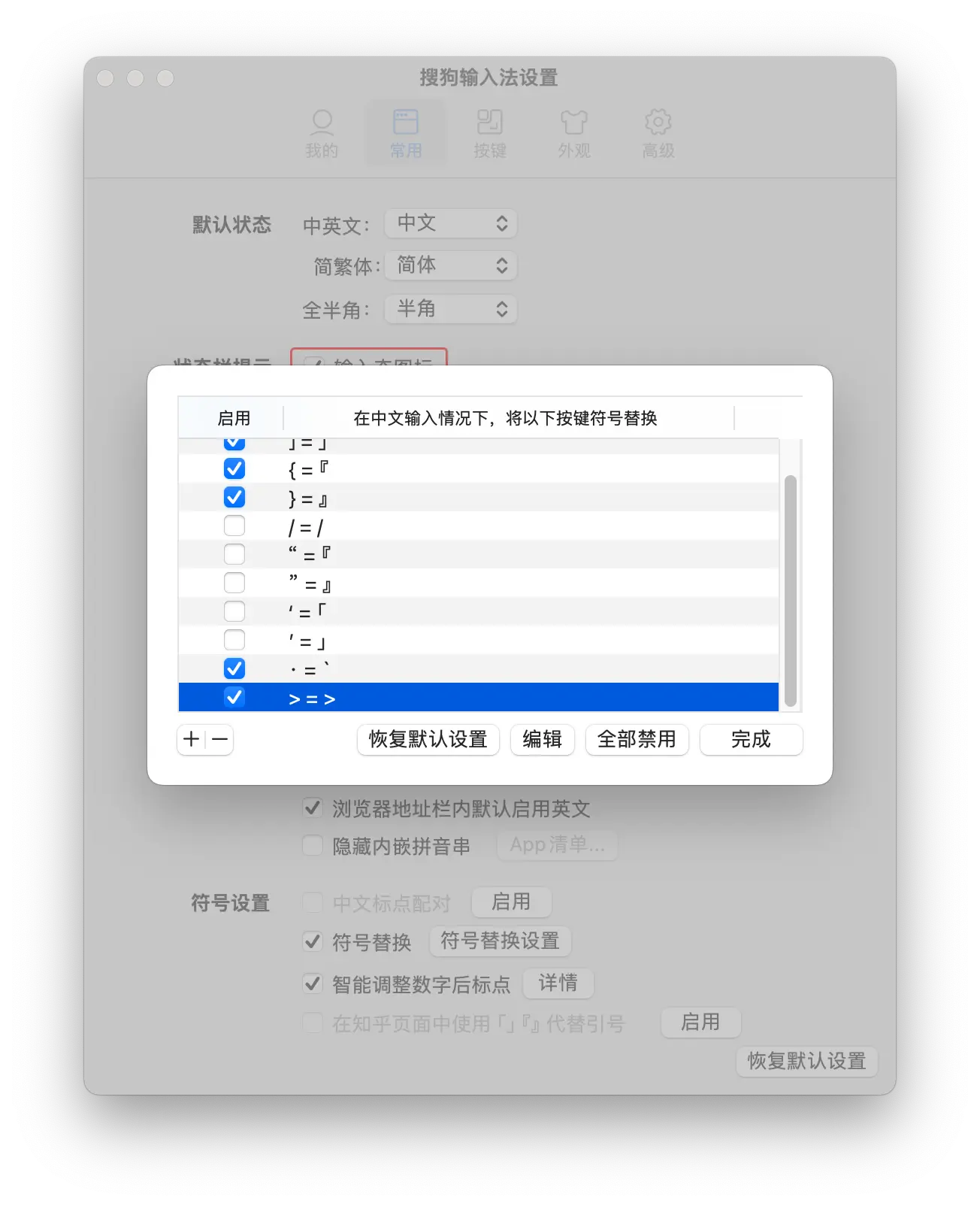
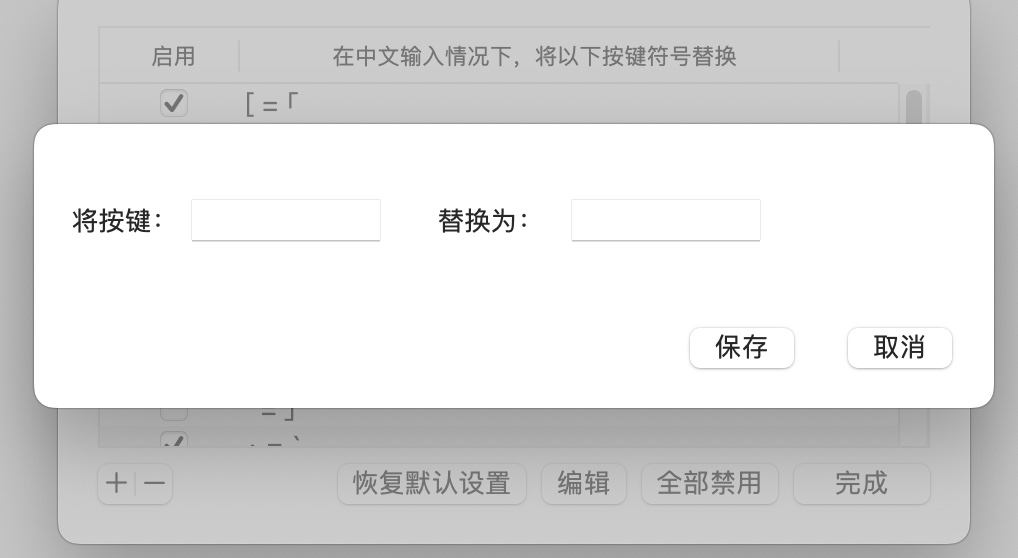
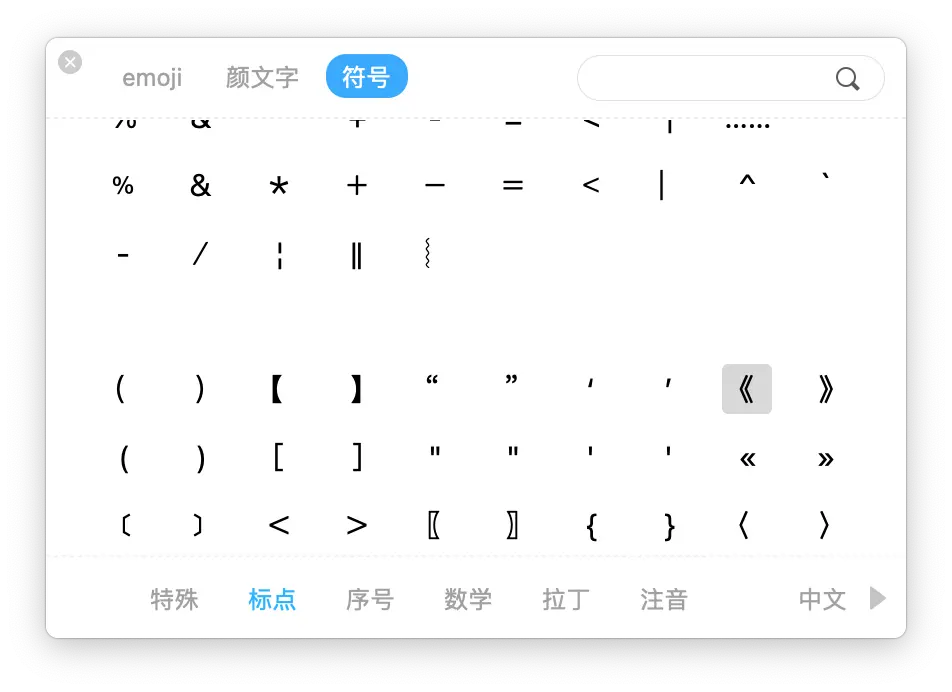
    <content type="html"><![CDATA[<p>从我了解 markdown 距今也好几年了，目前主力的笔记工具，是付费软件 Typora，它默认新建的文档，就是 md 结尾的 markdown 文件。</p><p>这种语言给文本设置格式的时候，得使用英文的标点符号。因此经常需要按 shift 键来切换中英状态。</p><p>比如说，我现在用中文打字中，然后需要用到引用块，那么需要打出 &gt; 这个符号，因此需要先切换为英文，打出大于号 &gt; 然后再切换回中文，继续打字。</p><p>不过目前我找到了一个还不错的解决方案——「让输入法在中文状态下，某些按键打出的是英文标点符号」。</p><p>其实直接在中文状态下，使用全英文标点符号，是最简单的解决方案。但是我不打算用这种，因为平时常用的逗号和句号这些，还是用中文的全角符号，看起来比较美观。</p><p>平时我常用的格式，就是一二三级标题，手动输入是 <code>#</code>，不过我很少手动，设置标题用快捷键就行。cmd + 1 这样。</p><p>还有就是 <code>代码</code> 和</p><blockquote><p>引用</p></blockquote><p>这两种格式，我之前一般都是切换到英文状态下，来输入 <code>`</code> 和 <code>&gt;</code> 的。</p><p>而现在，我不需要按 shift 键来切换了。因为在 Mac 的搜狗输入法里，有一个「符号替换」功能。</p><p><img src="/img/2024/Punctuation-replace.webp" alt="Punctuation-replace"></p><p>里面默认就有几条规则，我们可以点击左下角的 + 来新建规则。</p><p><img src="/img/2024/replace-2.jpg" alt="replace-2"></p><p>它会出现两个输入框，第一个只能用英文输入法来输入字符，第二个就可以用中文。</p><p>我是这么操作的：</p><ol><li>第一个框，按一下波浪键，第二个框，切换到英文状态，按一下波浪键。</li><li>第一个框，按 shift + 大于号键，也就是输入一个大于号。第二个框，切换到英文状态，同样输入一个大于号 &gt;。</li></ol><p>然后就 OK 了。</p><p>其实我觉得它这里的逻辑是可以优化一下的，让第一个框，也可以输入中文标点，会比较直观一些。</p><p>这样操作之后呢，我就没法打出 <code>》</code> 这个右书名号了。不过不重要，我基本没怎么使用过这个符号。</p><p>如果真要打出来，也是可以的，按快捷键 <code>Ctrl + shift + e</code> 就可以呼出「符号菜单」，在里面找就行。</p><p><img src="/img/2024/mac-sougou-fuhao.webp" alt="mac-sougou-fuhao"></p>]]></content>


    <summary type="html">&lt;p&gt;从我了解 markdown 距今也好几年了，目前主力的笔记工具，是付费软件 Typora，它默认新建的文档，就是 md 结尾的 markdown 文件。&lt;/p&gt;
&lt;p&gt;这种语言给文本设置格式的时候，得使用英文的标点符号。因此经常需要按 shift 键来切换中英状态。&lt;/p&gt;</summary>


    <category term="Mac" scheme="https://powersee.github.io/tags/Mac/"/>
    
  </entry>
  
  <entry>
    <title>Typora Mac 版本如何打开开发人员工具？</title>
    <link href="https://powersee.github.io/2024/08/typora-macos-debug/"/>
    <id>https://powersee.github.io/2024/08/typora-macos-debug/</id>
    <published>2024-08-18T08:56:04.000Z</published>
    <updated>2024-08-18T08:56:43.098Z</updated>
    
    <content type="html"><![CDATA[<p>目前我 Mac 上的 Typora 已经升级到了 1.9.4 版本，现在我找不到调出「开发人员工具」的地方。</p><p>以前的版本，我记得在设置里面，勾选上开发工具，然后在编辑页面右键就行，现在没有了。</p><p>目前新版本，需要通过 Safari 才行。</p><p>先打开 Typora，然后打开 Safari 浏览器，点击上方的「开发」，第三行就是我们机器的名字和系统版本，鼠标放上去，就可以在右边看到 Typora。</p><p><img src="/img/2024/Safari-debug-Typora.webp" alt="Safari-debug-Typora"></p><p>我这里在 Typora 打开了 3 个文档，所以这里有 3 个选项，鼠标放到对应选项时，后面的文档会高亮起来。</p><p><img src="/img/2024/Typora-debug.webp" alt="Typora-debug"></p><p>点击之后就可以打开对应文档的「开发人员工具」了。</p><p>参考：<a href="https://support.typoraio.cn/Debug-Themes/">Debug Themes &#x2F; CSS - Typora Support</a></p>]]></content>


    <summary type="html">&lt;p&gt;目前我 Mac 上的 Typora 已经升级到了 1.9.4 版本，现在我找不到调出「开发人员工具」的地方。&lt;/p&gt;
&lt;p&gt;以前的版本，我记得在设置里面，勾选上开发工具，然后在编辑页面右键就行，现在没有了。&lt;/p&gt;
&lt;p&gt;目前新版本，需要通过 Safari 才行。&lt;/p&gt;
</summary>


    <category term="Mac" scheme="https://powersee.github.io/tags/Mac/"/>
    
  </entry>
  
  <entry>
    <title>Windows 10 无法连接上 Xbox 手柄</title>
    <link href="https://powersee.github.io/2024/08/xbox-controller-remove-failed/"/>
    <id>https://powersee.github.io/2024/08/xbox-controller-remove-failed/</id>
    <published>2024-08-16T17:33:51.000Z</published>
    <updated>2024-08-16T17:35:09.537Z</updated>
    
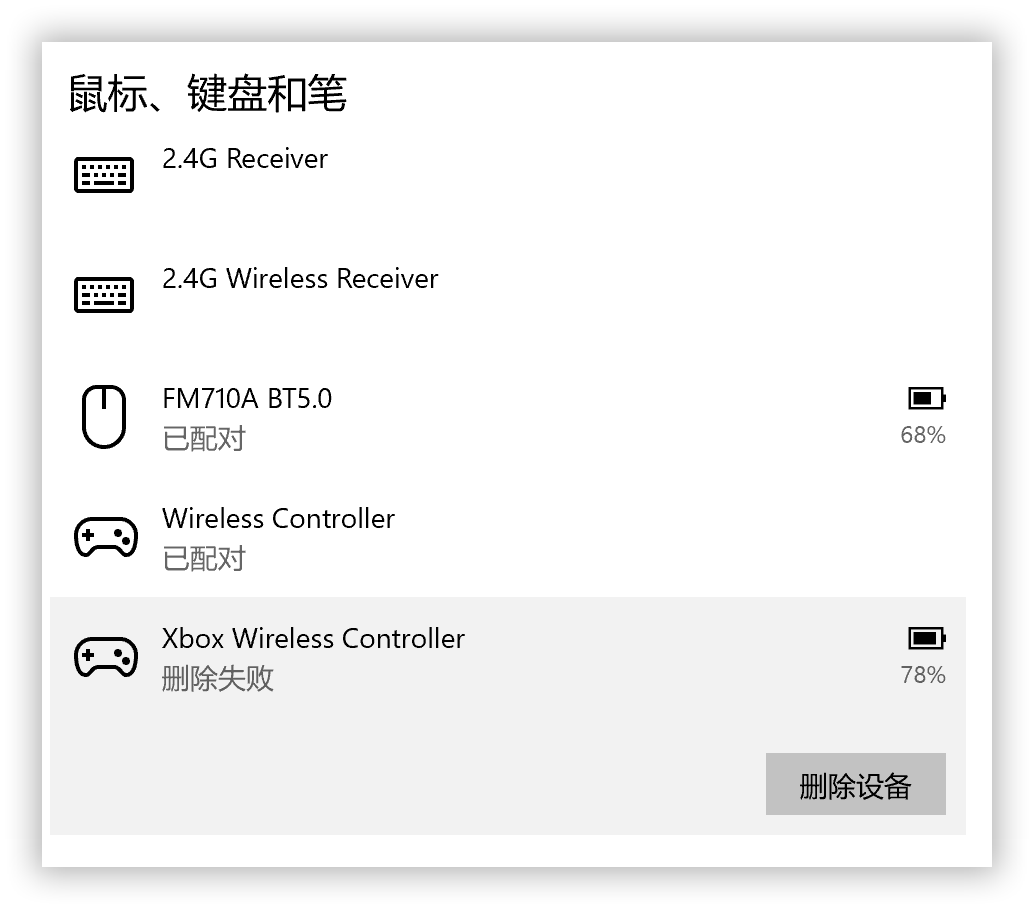
    <content type="html"><![CDATA[<p><img src="/img/2024/xbox-controller-keling.webp" alt="xbox-controller-keling"></p><p>又一次被这个 Xbox 手柄折磨了。</p><p>原本这个手柄在我的 win10 台式机上面，是可以正常使用的。然而前段时间，我拿另外一台电脑，通过蓝牙连接这个手柄。</p><p>手柄好像认了新电脑当主人之后，就连接不上旧电脑了。</p><p>那按理来说，我把手柄和旧电脑，重新匹配一下就好呗。然而事情没有这么简单。</p><p><img src="/img/2024/xbox-controller-remove-failed.png" alt="xbox-controller-remove-failed"></p><p>因为我在 Windows 的蓝牙设置里，没法删掉 Xbox 手柄。点击删除设备会提示「删除失败」。</p><p>而不删除的话，我让手柄进入配对模式，此时电脑是搜索不到手柄的，也就没法连接了。</p><h3 id="尝试方案一"><a href="#尝试方案一" class="headerlink" title="尝试方案一"></a>尝试方案一</h3><p>打开「设备管理器」，把上方的「查看」里面的「显示隐藏的设备」勾选上。</p><p>然后把里面的蓝牙设备都卸载掉。</p><p>我这边卸载后，还是没法连接上手柄。</p><h3 id="尝试方案二"><a href="#尝试方案二" class="headerlink" title="尝试方案二"></a>尝试方案二</h3><p>安装一个蓝牙命令行工具 <a href="https://bluetoothinstaller.com/bluetooth-command-line-tools">Bluetooth command line tools</a></p><p>安装这个主要为了使用 btpair 这个命令，网页上对它的介绍是</p><blockquote><p>Performs pairing with remote bluetooth devices.<br>与远程蓝牙设备进行配对。</p></blockquote><p>不过这个软件好像有点老了，最新的版本距今也接近 12 年。</p><figure class="highlight plaintext"><table><tr><td class="code"><pre><span class="line">Version history</span><br><span class="line">1.2.0.56 Nov 2, 2012</span><br><span class="line">Minor improvements and new featues in btconfig, btpair and bcom</span><br><span class="line">Windows 8 support.</span><br></pre></td></tr></table></figure><p>看到它这么久没更新了，我其实是有些怀疑的，老软件到底能不能解决新机器的问题呢？</p><p>最终实测是有效果，从官网下载并安装 <code>BluetoothCLTools-1.2.0.56.exe</code>，然后打开 powershell，执行 <code>btpair -u</code>，删除所有匹配过的蓝牙设备。</p><p>之后的我手柄进入匹配模式，电脑搜索蓝牙信号，就可以搜索到，然后成功连接上了。</p><p>这不是我第一次被蓝牙连接 xbox 手柄所困扰，我相信也不会是最后一次。我记得上次我是在设备管理器里面，删除 Microsoft 开头的蓝牙设备后，就可以连接手柄了。</p><p>但是这次不行，所以我找到新的方法，也成功解决了问题。这里我就把过程记录下来，希望后面其他玩家遇到同样的问题时，可以搜索到吧。</p>]]></content>


    <summary type="html">&lt;p&gt;&lt;img src=&quot;/img/2024/xbox-controller-keling.webp&quot; alt=&quot;xbox-controller-keling&quot;&gt;&lt;/p&gt;
&lt;p&gt;又一次被这个 Xbox 手柄折磨了。&lt;/p&gt;
&lt;p&gt;原本这个手柄在我的 win10 台式机上面，是可以</summary>


    <category term="Windows" scheme="https://powersee.github.io/tags/Windows/"/>
    
    <category term="Xbox" scheme="https://powersee.github.io/tags/Xbox/"/>
    
  </entry>
  
  <entry>
    <title>Windows 11 资源管理器的地址栏消失了</title>
    <link href="https://powersee.github.io/2024/08/windows11-address-bar-missing/"/>
    <id>https://powersee.github.io/2024/08/windows11-address-bar-missing/</id>
    <published>2024-08-16T05:21:46.000Z</published>
    <updated>2024-08-16T05:24:10.731Z</updated>
    
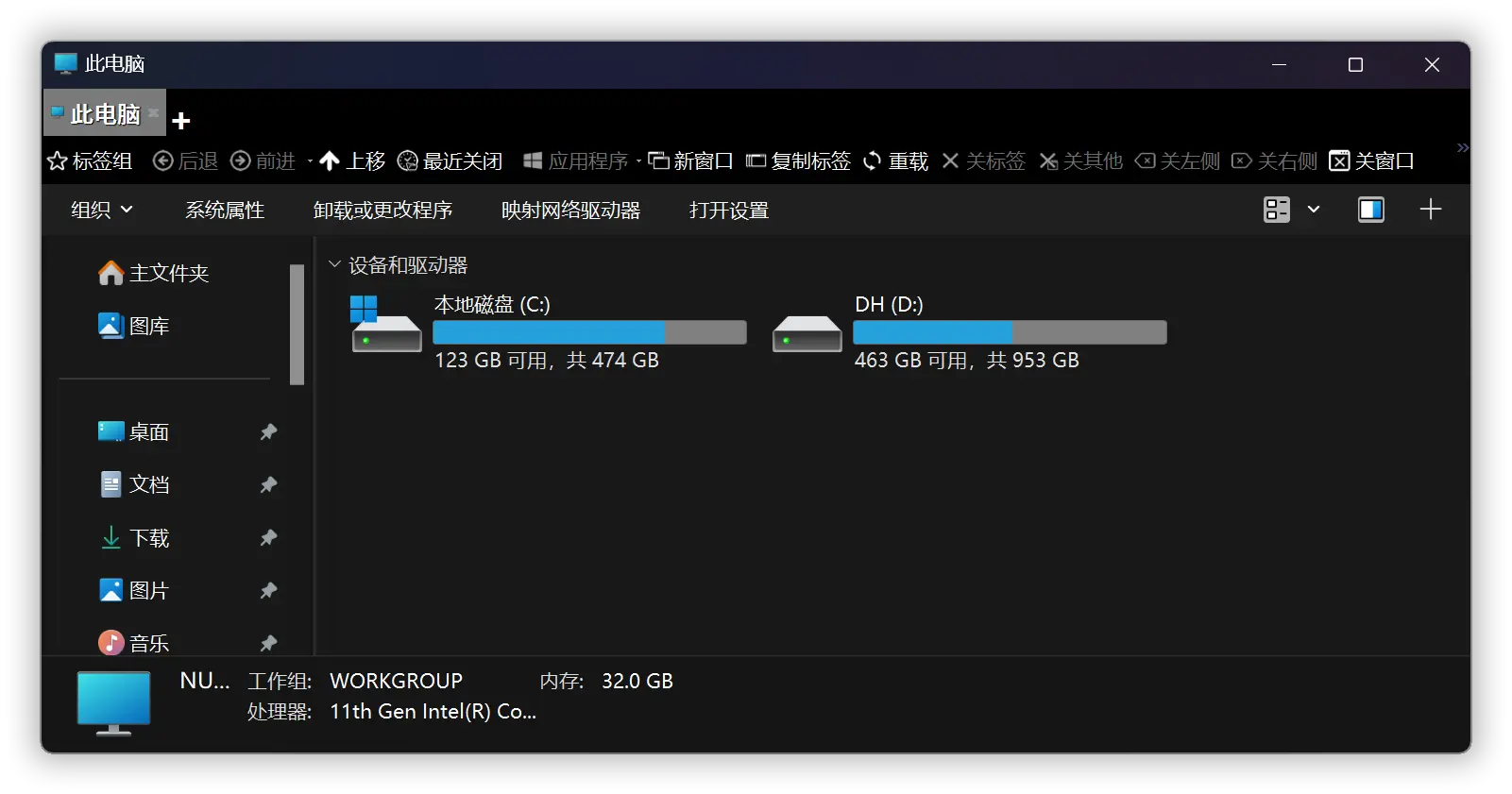
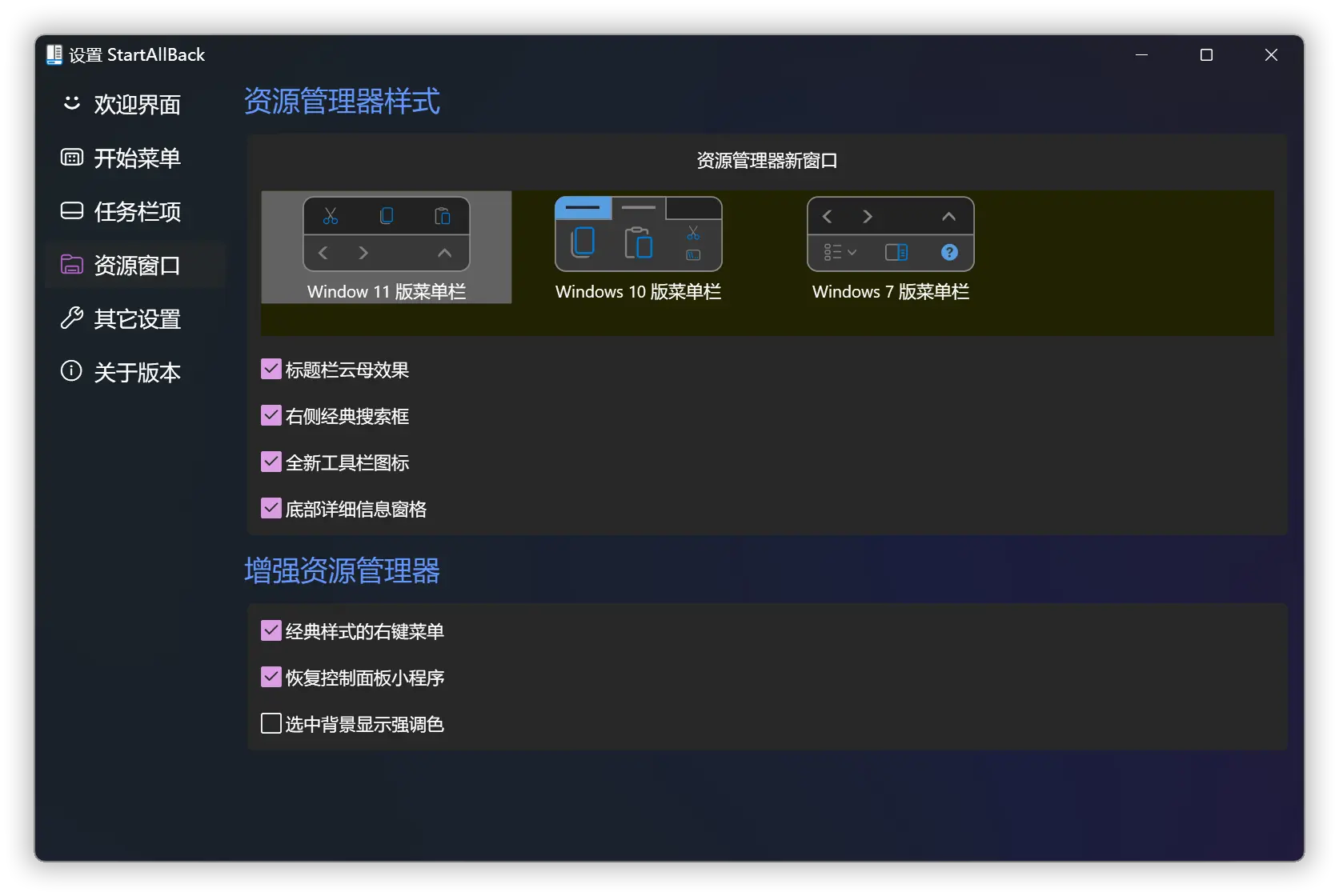
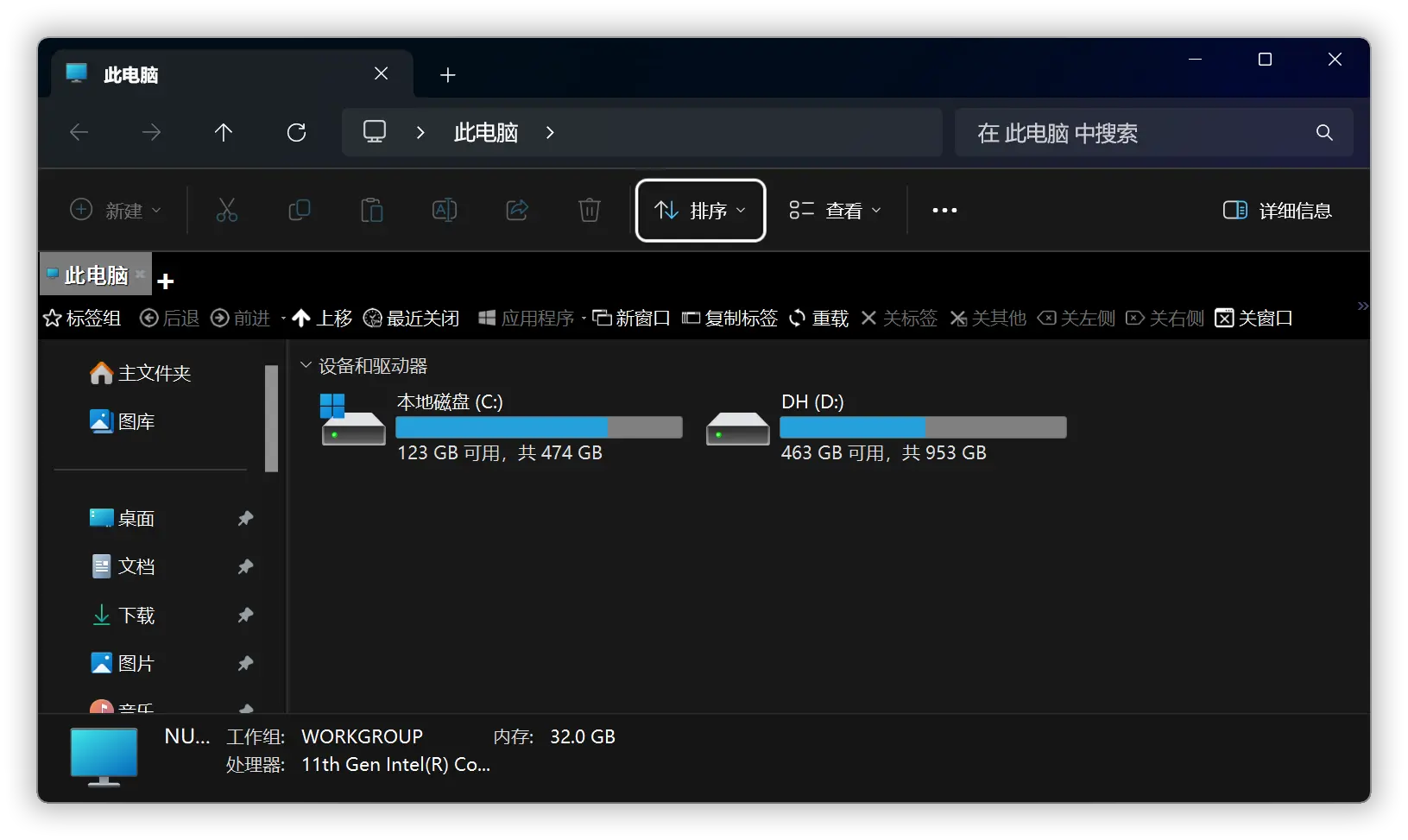
    <content type="html"><![CDATA[<p>最近打开一台很久没开机的 win11 电脑，使用了一下，然后系统提示更新。</p><p>等它更新完成之后，我打开资源管理器，发现地址栏不见了。</p><p><img src="/img/2024/startallback-win7.webp" alt="startallback-win7"></p><p>看来应该和这次更新有关，网上搜索一下，有网友也遇过这样的问题，他的解决方案是，到设置里面回滚更新，好像可以退回到更新前的状态。</p><p>不过我不想这么做，继续了解，有人讲到是电脑安装 StartAllBack 这个软件导致的。需要在软件的设置里面，把「资源管理器样式」改回 Win11 就行。</p><p>（提醒一下，StartAllBack 这个软件安装后，是没有 APP 图标的，想要再次进入软件的设置界面，需要把鼠标放在「开始菜单」的位置，然后右键，选择「属性」。）</p><p><img src="/img/2024/startallback-win11.webp" alt="startallback-win11"></p><p>果然如此，我改回 Win11 之后，资源管理器的地址栏就再次出现了。</p><p><img src="/img/2024/win11-explorer-ok.webp" alt="win11-explorer-ok"></p><p>不过这个问题其实也可以通过，更新 StartAllBack 的软件版本来解决，新版本依然可以使用 win10 的样式。</p>]]></content>


    <summary type="html">&lt;p&gt;最近打开一台很久没开机的 win11 电脑，使用了一下，然后系统提示更新。&lt;/p&gt;
&lt;p&gt;等它更新完成之后，我打开资源管理器，发现地址栏不见了。&lt;/p&gt;
&lt;p&gt;&lt;img src=&quot;/img/2024/startallback-win7.webp&quot; alt=&quot;startall</summary>


    <category term="Windows" scheme="https://powersee.github.io/tags/Windows/"/>
    
  </entry>
  
  <entry>
    <title>Nu shell 的自定义命令（函数）笔记</title>
    <link href="https://powersee.github.io/2024/08/nu-shell-def/"/>
    <id>https://powersee.github.io/2024/08/nu-shell-def/</id>
    <published>2024-08-12T15:39:09.000Z</published>
    <updated>2024-08-12T15:44:17.423Z</updated>
    
    <content type="html"><![CDATA[<p>由于我经常使用 yt-dlp 来下载视频或者音频，所以之前已经给 nu shell 添加了 alias，把 yt-dlp 缩短为 yt。</p><p>但是我平时喜欢把音频，直接下载到一个特定的目录里面。所以使用命令行，我需要先 cd xxxx，然后再执行 yt xxxx。</p><p>在 Mac 上面我使用的是 zsh，所以写一条 alias</p><figure class="highlight plaintext"><table><tr><td class="code"><pre><span class="line">alias ya=&quot;cd xxxx &amp;&amp; yt-dlp --format &#x27;bestaudio[ext!=webm]&#x27;&quot;</span><br></pre></td></tr></table></figure><p>然后平时就执行 ya url，就可以下载到 url 对应的音频了。</p><p>但是我发现，在 nu shell 这边的 alias，没法这么用，即使我已经知道它不能使用 <code>&amp;&amp;</code>，得使用 <code>;</code> 才对。</p><p>在这边我也是折腾了不少时间，使用 alias 应该是没法达到我的目的了。</p><p>所以我寻找其它的方法——<a href="https://www.nushell.sh/zh-CN/book/custom_commands.html">自定义命令 | Nushell</a></p><figure class="highlight plaintext"><table><tr><td class="code"><pre><span class="line">def yda [url:string] &#123;</span><br><span class="line">    cd &#x27;D:/xxx&#x27;</span><br><span class="line">    yt-dlp --format &#x27;bestaudio[ext!=webm]&#x27; $url</span><br><span class="line">&#125;</span><br></pre></td></tr></table></figure><p>最终就是写了一个函数，这样我们在 shell 里面执行 yda 后面需要一个参数。持久化的方法，我也是同样写到 env.nu 里面。</p><p><img src="/img/2024/nu-shell-yda.png" alt="nu-shell-yda"></p>]]></content>


    <summary type="html">&lt;p&gt;由于我经常使用 yt-dlp 来下载视频或者音频，所以之前已经给 nu shell 添加了 alias，把 yt-dlp 缩短为 yt。&lt;/p&gt;
&lt;p&gt;但是我平时喜欢把音频，直接下载到一个特定的目录里面。所以使用命令行，我需要先 cd xxxx，然后再执行 yt xxxx。</summary>


    <category term="Windows" scheme="https://powersee.github.io/tags/Windows/"/>
    
    <category term="shell" scheme="https://powersee.github.io/tags/shell/"/>
    
  </entry>
  
  <entry>
    <title>Nu shell 的 alias （别名）笔记</title>
    <link href="https://powersee.github.io/2024/08/nu-shell-alias/"/>
    <id>https://powersee.github.io/2024/08/nu-shell-alias/</id>
    <published>2024-08-11T15:54:55.000Z</published>
    <updated>2024-08-12T15:41:55.993Z</updated>
    
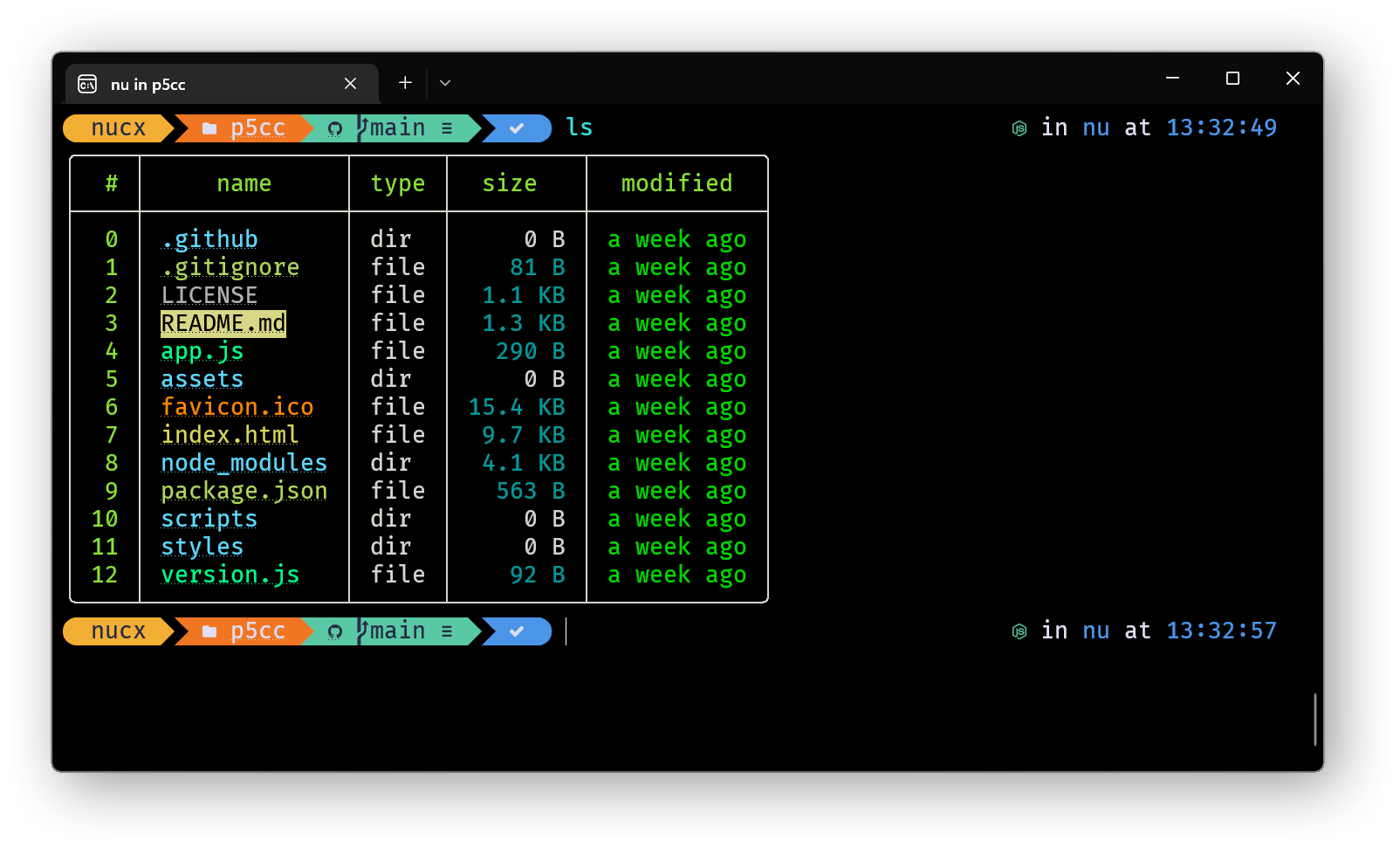
    <content type="html"><![CDATA[<p>平时在 Mac 和 Linux 上面，我挺喜欢使用 alias 的，可以节省我执行命令的时间。</p><p>Windows 上面，我还是用不惯 powershell 和 cmd，所以我在上面安装了 nu shell，并且把它设置为默认的 shell，打开终端 APP 的时候，就会启动 nu shell。</p><p><img src="/img/2023/nushell-ls.png"></p><p>在比较简单的情况下，它的 alias 和 bash 的差不多。</p><p>此处可以参考官方文档：<a href="https://www.nushell.sh/zh-CN/book/aliases.html">别名 | Nushell</a></p><p>例如我就把 yt-dlp 缩短为 yt</p><figure class="highlight plaintext"><table><tr><td class="code"><pre><span class="line"> $ alias yt = yt-dlp</span><br><span class="line"> $ yt-dlp --version                     </span><br><span class="line">2024.08.01</span><br><span class="line"> $ yt --version </span><br><span class="line">2024.08.01</span><br></pre></td></tr></table></figure><p>不过里面说，想要持久化，可以添加到你的 config.nu 文件中。</p><p>我没有这么做，我直接写入到 env.nu 中了，直接把 env.nu 当成 .zshrc 来看待了。</p><p>如果只是简单地缩短命令，那么了解到这里就足够了。</p><p>不过使用稍微深一点，就还是容易遇到问题。</p><h3 id="首先是命令的拼接"><a href="#首先是命令的拼接" class="headerlink" title="首先是命令的拼接"></a>首先是命令的拼接</h3><p>在 bash 上面我们可以使用 &amp;&amp; 来连接两条命令。不过在 nu 这边不行，这点我们可以参考官方的这篇文档 <a href="https://www.nushell.sh/zh-CN/book/coming_from_bash.html">从 Bash 到 Nu | Nushell</a>，这里面可以了解到 bash 上面的 &amp;&amp;，在 nu shell 里是使用 <code>;</code></p><h3 id="然后是-Windows-切换盘符"><a href="#然后是-Windows-切换盘符" class="headerlink" title="然后是 Windows 切换盘符"></a>然后是 Windows 切换盘符</h3><p>我们平时启动 shell 之后，默认是在 C 盘的用户目录下，此时如果想切换到 D 盘。</p><p>那么在 cmd 和 powershell，我们只需要执行</p><figure class="highlight plaintext"><table><tr><td class="code"><pre><span class="line">D:</span><br></pre></td></tr></table></figure><p>就可以切换过去。但是在 nu 这边不行，得加多一个 \</p><figure class="highlight plaintext"><table><tr><td class="code"><pre><span class="line">D:\</span><br></pre></td></tr></table></figure>]]></content>


    <summary type="html">&lt;p&gt;平时在 Mac 和 Linux 上面，我挺喜欢使用 alias 的，可以节省我执行命令的时间。&lt;/p&gt;
&lt;p&gt;Windows 上面，我还是用不惯 powershell 和 cmd，所以我在上面安装了 nu shell，并且把它设置为默认的 shell，打开终端 APP 的时</summary>


    <category term="Windows" scheme="https://powersee.github.io/tags/Windows/"/>
    
    <category term="shell" scheme="https://powersee.github.io/tags/shell/"/>
    
  </entry>
  
  <entry>
    <title>本地部署开源语音转文字模型 SenseVoice</title>
    <link href="https://powersee.github.io/2024/08/SenseVoice/"/>
    <id>https://powersee.github.io/2024/08/SenseVoice/</id>
    <published>2024-08-08T13:39:15.000Z</published>
    <updated>2024-08-08T13:40:25.285Z</updated>
    
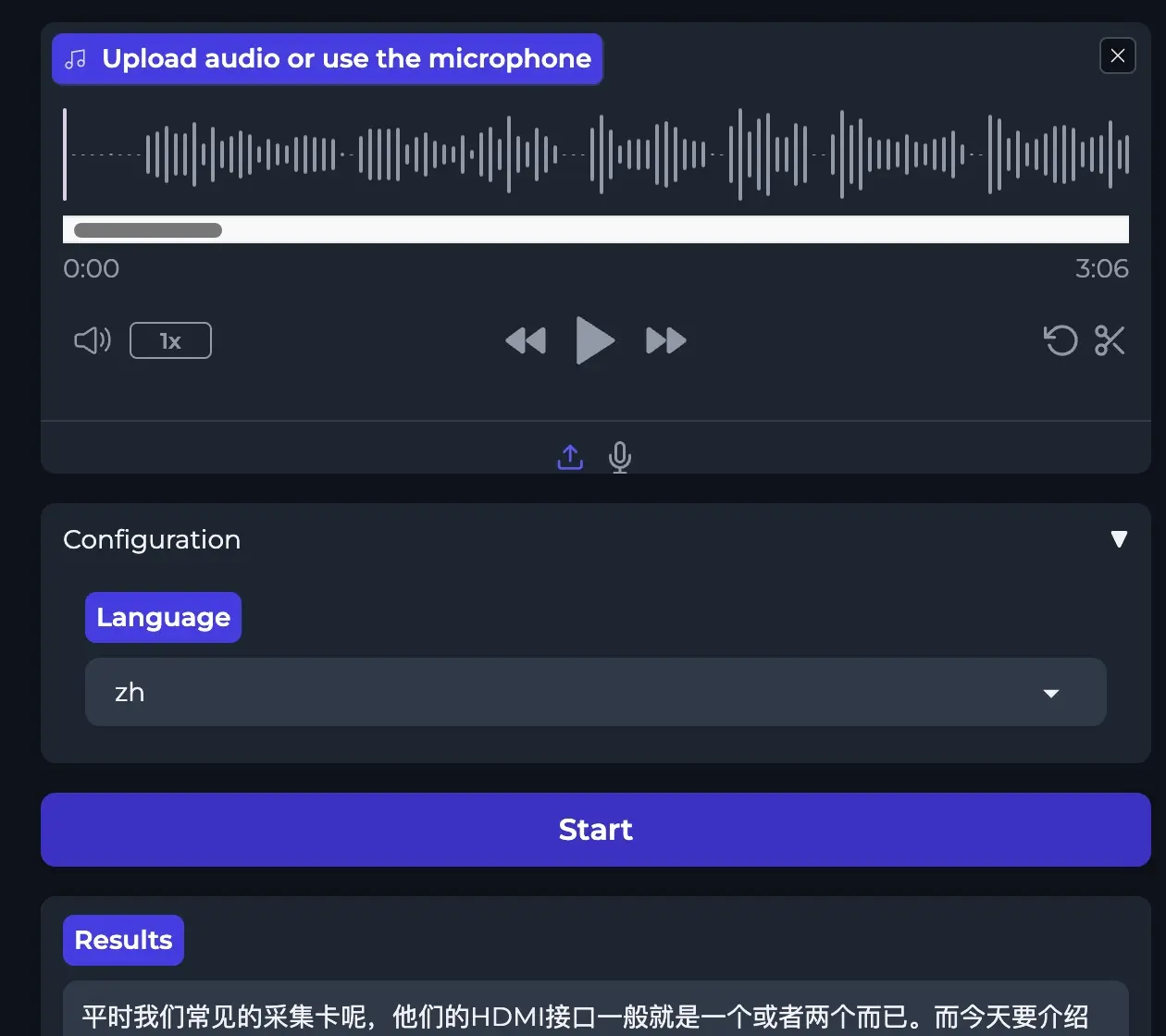
    <content type="html"><![CDATA[<p>阿里的语音转文字模型 <a href="https://github.com/FunAudioLLM/SenseVoice/">https://github.com/FunAudioLLM/SenseVoice/</a></p><p>听说比 openai 的 Whisper 效果好，既然是开源的，那就下载来试试看吧。</p><ul><li><p>这个可以用 CPU 来运行，所以没有显卡也能用。</p></li><li><p>对电脑系统要求有 python 和 ffmpeg。</p></li></ul><p>首先把代码克隆到本地</p><figure class="highlight plaintext"><table><tr><td class="code"><pre><span class="line">git clone https://github.com/FunAudioLLM/SenseVoice.git</span><br></pre></td></tr></table></figure><p>然后安装依赖</p><figure class="highlight plaintext"><table><tr><td class="code"><pre><span class="line">pip install -r requirements.txt</span><br></pre></td></tr></table></figure><p>完成后启动 webui 就可以使用了</p><figure class="highlight plaintext"><table><tr><td class="code"><pre><span class="line">python webui.py</span><br></pre></td></tr></table></figure><p><img src="/img/2024/sensevoice-webui.webp" alt="sensevoice-webui"></p><p>一般运行之后，会给我们一个地址 <a href="http://127.0.0.1:7860/">http://127.0.0.1:7860</a> 打开浏览器访问它，然后上传音频上去，语言可以选择一下，这样可以更快速转换，再点击一下 「start」按键就可以了。</p><p>我使用的是 Mac mini，观察了一下，使用时占用内存 1.6GB，点击 start 后开始转换，主要是 CPU 占用增加，GPU 好像没变化，转换时内存占用会提高到 2.6GB。</p><p>速度确实挺快的，三分钟的音频，6 秒就转换好了。这点可以从终端看到。</p><figure class="highlight plaintext"><table><tr><td class="code"><pre><span class="line">time_speech:  185.867, time_escape: 6.026: 100%</span><br></pre></td></tr></table></figure><p>后面又尝试了一段 57 分钟的音频，耗时不到两分钟</p><figure class="highlight plaintext"><table><tr><td class="code"><pre><span class="line">time_speech:  3461.120, time_escape: 113.743: 100%</span><br></pre></td></tr></table></figure><p>注意，安装的依赖比较占用空间</p><figure class="highlight plaintext"><table><tr><td class="code"><pre><span class="line">torch&lt;=2.3</span><br><span class="line">torchaudio</span><br><span class="line">modelscope</span><br><span class="line">huggingface</span><br><span class="line">huggingface_hub</span><br><span class="line">funasr&gt;=1.1.3</span><br><span class="line">numpy&lt;=1.26.4</span><br><span class="line">gradio</span><br><span class="line">fastapi&gt;=0.111.1</span><br></pre></td></tr></table></figure><p>建议创建 python 虚拟环境，专门给它使用。</p><p>我这边 venv 目录占用了 883 MB。</p><p>目前好像就开源了这个 small 模型，我们好像也不能切换其它模型，不过我感觉转换的质量还不错，所以以后在 Mac 上我就使用它来语音转文字了，Windows 上面我还是会继续使用 Whisper。</p>]]></content>


    <summary type="html">&lt;p&gt;阿里的语音转文字模型 &lt;a href=&quot;https://github.com/FunAudioLLM/SenseVoice/&quot;&gt;https://github.com/FunAudioLLM/SenseVoice/&lt;/a&gt;&lt;/p&gt;
&lt;p&gt;听说比 openai 的 Whispe</summary>


    <category term="随笔" scheme="https://powersee.github.io/tags/%E9%9A%8F%E7%AC%94/"/>
    
  </entry>
  
</feed>